
Getting Started With Adobe Photoshop CS5
This section will cover: Overview of program, Creating New file, Opening files and viewing the tools.
This is the first window that will appear when you launch the program.
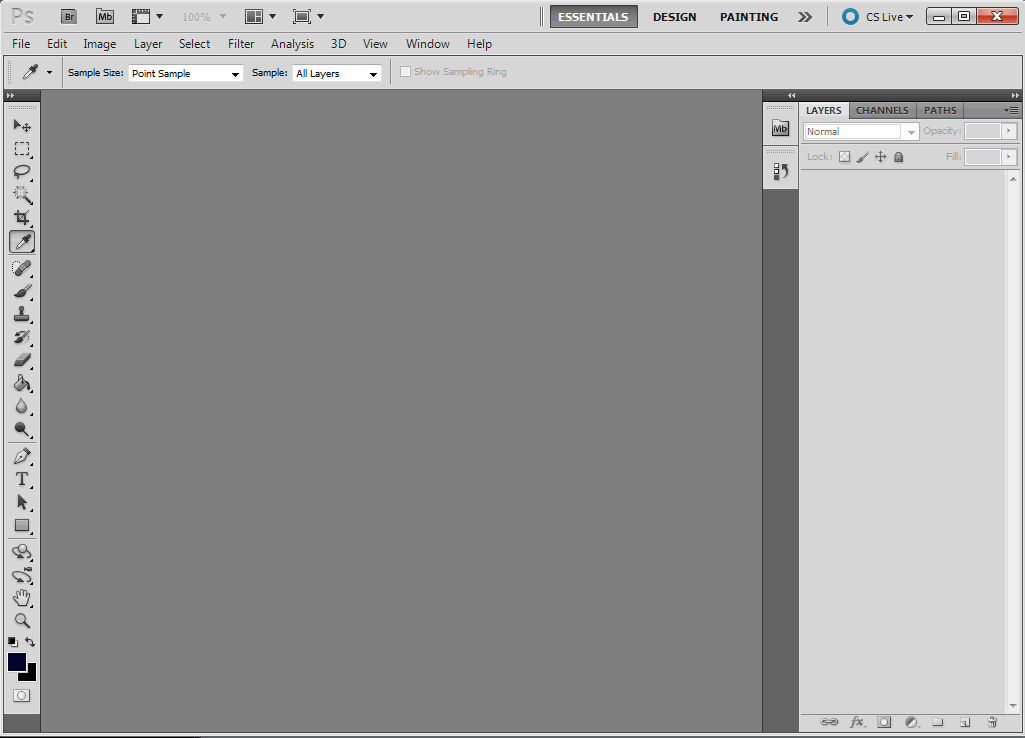
file > New or Open: Choosing New means you would like to create an Image. Open means you want to open an Image that is already created.

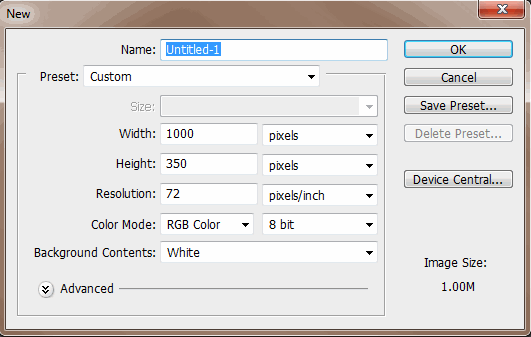 |
When Choosing New, a window will come up asking for the Name of the file. The Width and Height of the Image is the measurement of the image, which will be either pixels or inches). Resolution is dpi for the Web or on screen which is any where from 72 and up. The Dots per inch on the monitor is 96. The Color Mode is RGB(Red,Green,&Blue colors that are used to create web colors).Other Modes will be discussed at a later time. The Background Contents choices are White, Background Color or Transparent. Click ok to add the canvas to the program. |
|---|
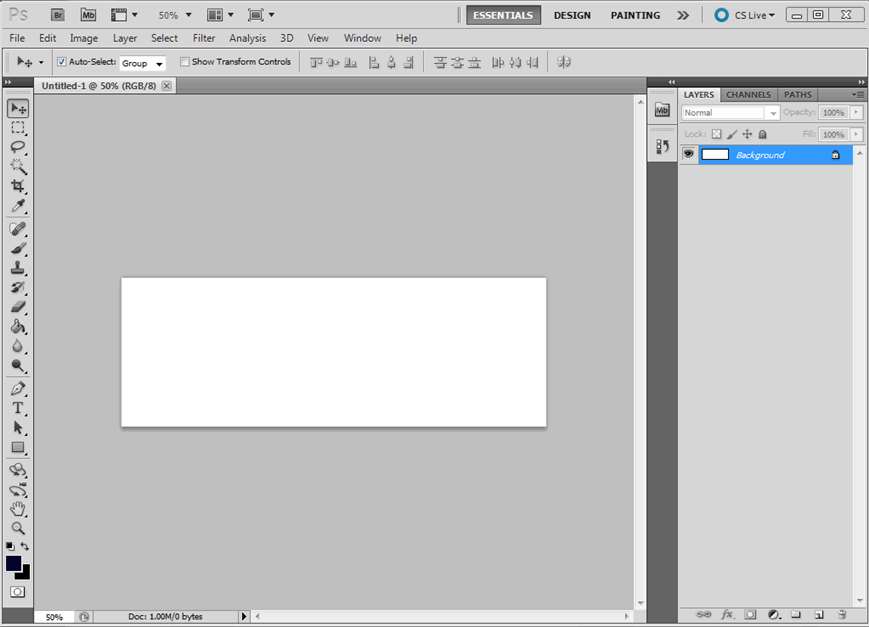
Now you're ready to get started.
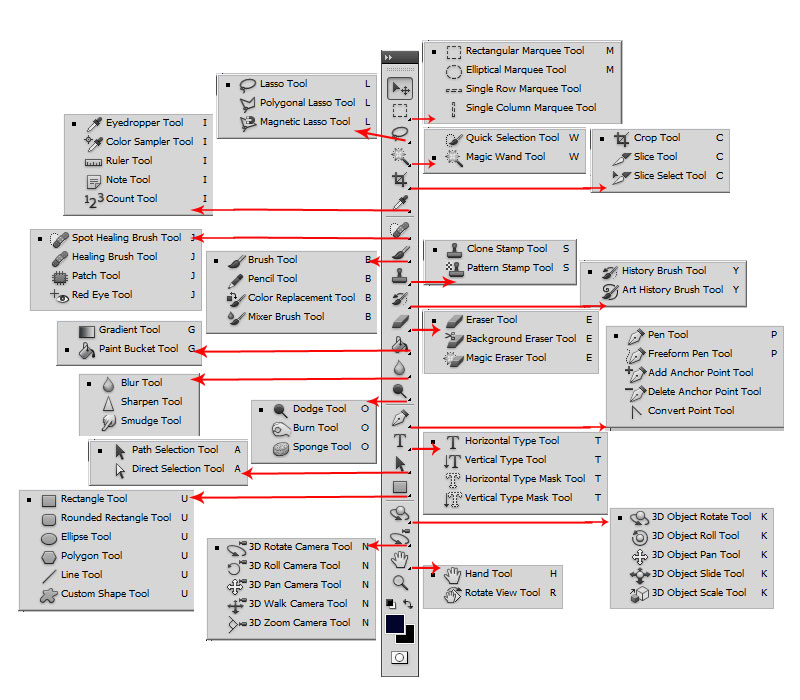
The Tool Palette can be over whelming if you're new to the tools and CS5 has a few new ones as well.

(above image is from Adobe help)
When you click on the small triangle on one of the tools a menu will pop up to give you more choices.
Entering Values
In Photoshop you have different options to add values in the option bars and palettes, such as the slider bar, angle controls, arrow buttons, and text boxes.
To enter values, do one of the following:
-
Type a value in the Text box.
-
Use the slider bar.
-
Click the up arrow or down arrow button in the palette to increase or decrease the value.
-
(Windows only) Click in the text field and then press the Up Arrow or Down Arrow key on the keyboard to increase or decrease the value.
-
(Window only) Use the mouse wheel to increase or decrease the value.
Drag the angle control to the desired value. Shift-Drag to change the angle in 15-degree increments.
To cancel values before you apply them, press the Escape key.
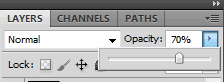 Example of a slider bar adjusting Opacity.
Viewing images
Photoshop has a viewing levels from 0.437% to 3200%, this percentage is displayed on the title bar.
Using the View menu
Choose View> Zoom In to enlarge the display of the image.(Ctrl + +)
Choose View> Zoom Out to reduce the view of the image. (Ctrl + -)
You can also use the zoom tool
to magnify and reduce the view of an image. Below are examples of zoom in and zoom out.

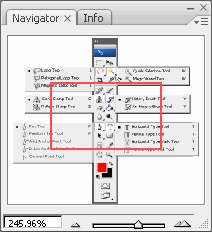
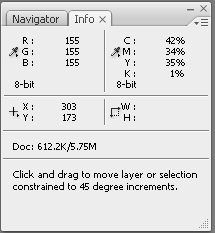
Photoshop Navigator palette gives you the option of looking at the image at different magnification levels without scrolling or resizing and image in the image window. The Info Palette gives color information and locations.
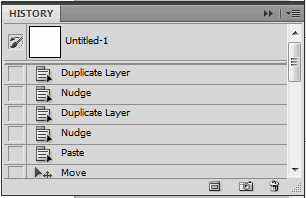
The History palette shows all your actions that you applied on your image. You can also right click on any layer and delete it, clear the History, new snapshot, or make it a new document.
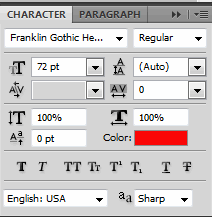
Character palette is available under Window > Character.

Using context menus
In addition to the menus at the top of your screen, context menus display commands revelent to the active tool, selection, or palette.
