Actions allow you to create a one step process for repeditive process, such as resizing many images at once. In this lesson you'll learn how to create an action to resize a folder of images all in one process.
|
|
|---|
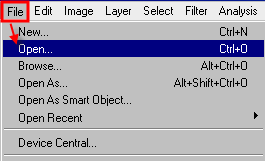
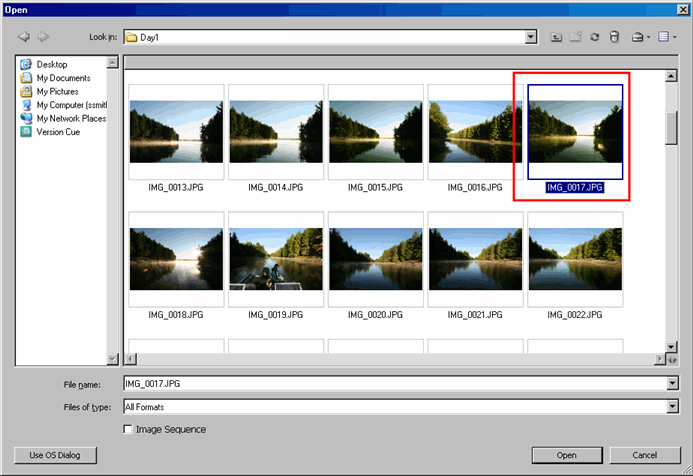
Select one image to start with for this lesson. Choose > Image > then select the > Open button.
Next go to Window > Actions ( Alt + F9)
to launch the Actions Panel. In this step we're going to create a New Action by selecting the New Action icon located at the bottom of the Actions Panel.
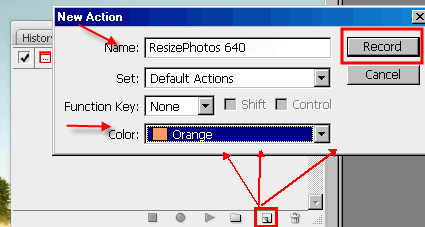
At the bottom of the Action Panel >Select the New Action icon. This will open another dialog called " New Action." Give the new action a Name I called mine the "ResizePhotos 640."
You'll see at the bottom of the list under the Actions tab will be the ResizePhotos 640 action. We don't have any steps added yet so we'll need to click the record button to get started. Don't worry just because you click the record button doesn't mean you're recording something, it only recordes certain actions.
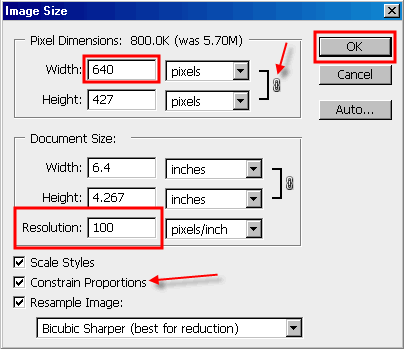
So the first action to be recorded is this...go to Image > Image Size.
Now set the Width to 640 and because we have constrain to proportion the Height will automatically change with the Width change. If you're going to change the Resolution change that first before changing the Width setting. Last but not least change the bottom setting to "Bicubic Sharper (best for reduction)
Click Ok button.
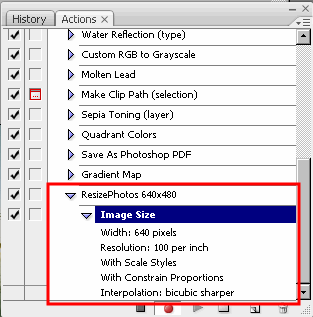
You can see now that the image resizing has been recorded as a step.
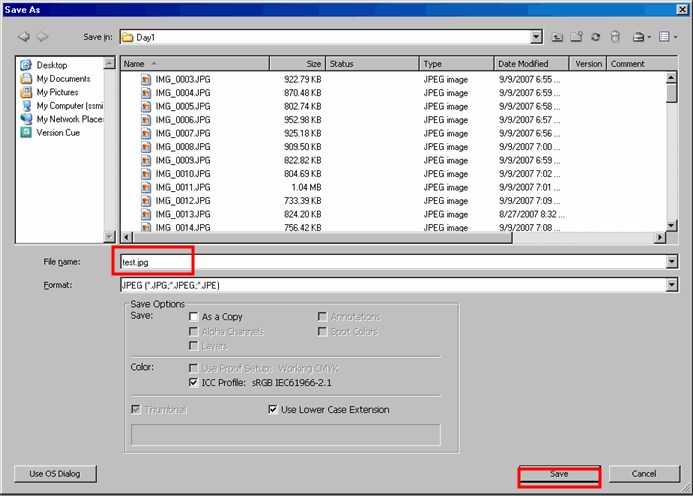
Now go to File and Save or SaveAs (dosen't matter which one) and Save the Resized image to your computer.
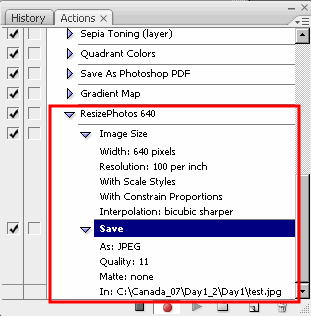
* Last thing you'll need to do is select the STOP button on the Actions Panel, which is the square button before the record button located on the bottom of the Panel.
Congratulations you've created an Action. Please note this is only going to work for images that are in a landscape mode or wider than they are tall. Images that are in a portrait will be resized improperly.
Automate using Photoshop
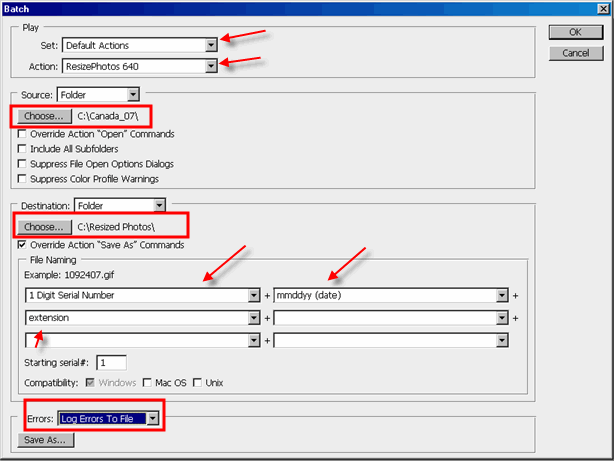
Next is the Batching Process which allows you to select a folder and run the actions we just created all in one step.
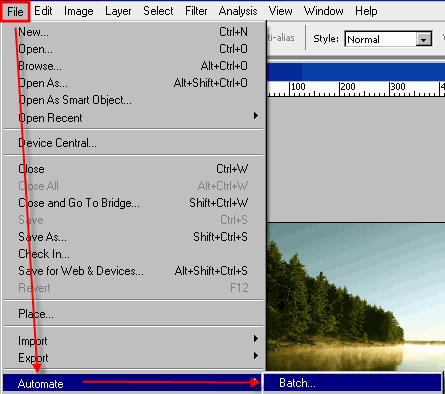
Go to File > Automate > Batch
- The Set: is the folder where the action is located ours in this lesson is the Default Actions folder.
- Use the dropdown on Action and select "ResizePhotos640."
- Source select "Folder." Then click on the Choose button and select where your images are coming from.
- Now select the Destination choose Folder for this. This time when you select the Choose button you're going to have to create a New Folder for the final images they can't go into the same folder as the originals.
- Check the Override Action "Save As" Commands
- File Naming select same as below.
- Errors: Choose Log Errors to File, and set a destination for this file. Why because if you don't the automated process will stop to tell you there might be a slight error which usually it doesn't effect the out put results. This allows the automation to continue through until it's finished.
Batch Dialog Settings